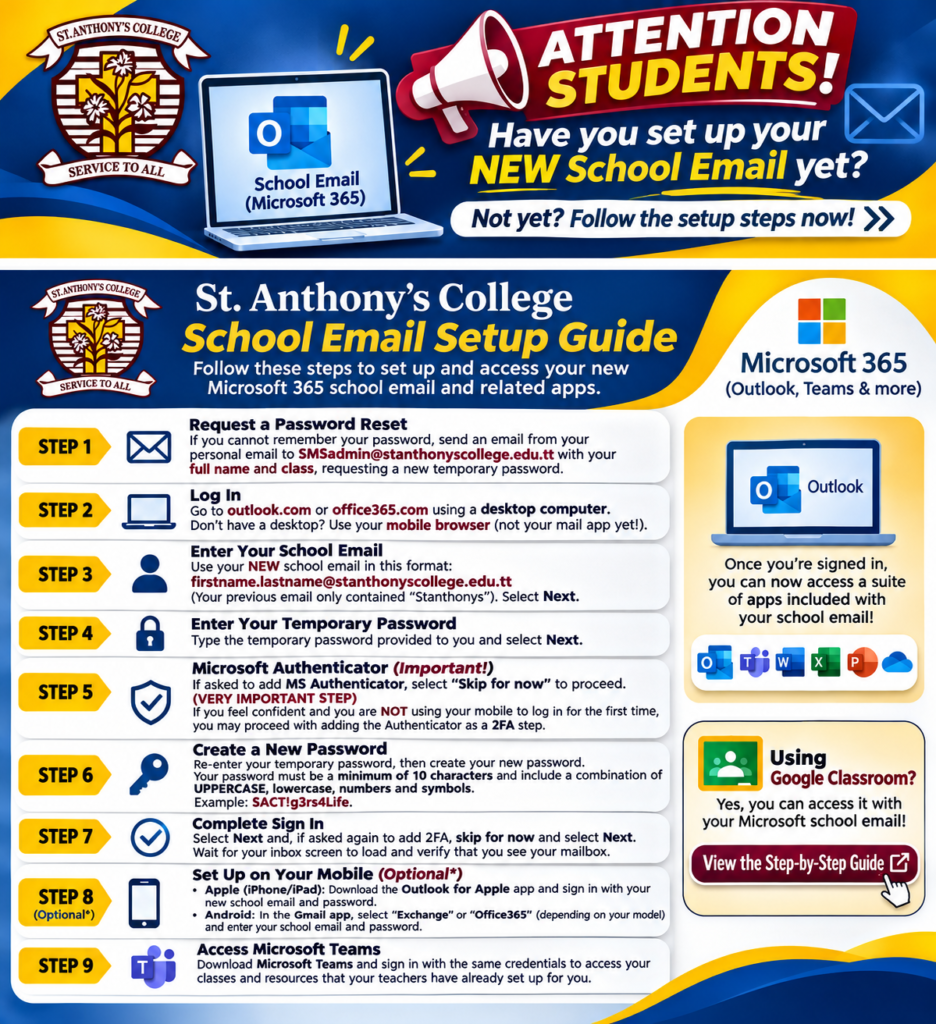
St. Anthony’s College is reminding all students who have not yet activated their new Microsoft 365 school email accounts to complete their setup as soon as possible.
Your school email gives you access to Outlook, Microsoft Teams and other Microsoft 365 applications that support your learning.
Follow these steps carefully to get connected!
Step 1 — Request a Password Reset (If Needed)
If you cannot remember your temporary password, send an email from your personal email account to:
SMSadmin@stanthonyscollege.edu.tt
Include your full name and class, and request a new temporary password.
Step 2 — Open Microsoft 365 in a Web Browser
Using a desktop or laptop computer, visit:
No computer? No problem! You can use your mobile phone’s web browser (Safari, Chrome, etc.).
Important: Do not use your phone’s email app for the initial setup.
Step 3 — Enter Your NEW School Email
Your new email address follows this format:
firstname.lastname@stanthonyscollege.edu.tt
Remember, your previous email address contained only stanthonys. Your new address includes stanthonyscollege.
Enter your school email and select Next.
Step 4 — Enter Your Temporary Password
Enter the temporary password issued to you by the school and select Next.
Step 5 — Microsoft Authenticator
You may be prompted to set up Microsoft Authenticator for additional account security.
If the option Skip for now is available, you may use it to continue and complete verification later, subject to the school’s security requirements.
If you are using a computer and have access to your mobile phone, we recommend setting up Microsoft Authenticator when prompted.
Never share your password or verification codes with anyone.
Step 6 — Create Your New Password
If prompted to change your password, re-enter your temporary password and create a new password.
Your new password must contain:
- At least 10 characters
- Uppercase and lowercase letters
- Numbers
- Symbols
Choose a strong, unique password that you can remember. Avoid using the sample password shown in any guide.
Step 7 — Complete Your First Sign-In
Select Next and follow any remaining security prompts. If an optional verification setup offers Skip for now, you may select it.
Wait for your Outlook inbox to load.
Success! If you can see your mailbox, your school email is working!
Step 8 — Add Your Email to Your Mobile Phone (Optional)
Once you have successfully signed in through a browser, you can set up your email on your phone.
Apple (iPhone/iPad): Download the Microsoft Outlook app from the App Store and sign in with your school email and new password.
Android: Open Gmail, select Add Account, then choose Exchange or Office 365, depending on your device. Follow the prompts to sign in.
You can also use the Microsoft Outlook app on Android.
Step 9 — Access Microsoft Teams
Download Microsoft Teams or visit https://teams.microsoft.com.
Sign in using the same school email address and password.
Some of your teachers have already created classes and shared resources through Teams, so be sure to check for updates!
BONUS — Can I Access Google Classroom Using My School Email?
Yes! Your Microsoft school email address can also be used to create or access a Google Account for Google Classroom, where permitted by the school’s Google Classroom settings.
This may require a one-time Google Account setup using your existing school email address. It does not replace your Microsoft 365 account.
Click here for our step-by-step Google Classroom access guide
Need help?
Email SMSadmin@stanthonyscollege.edu.tt from your personal email address, including your full name, class and a brief description of the problem.
St. Anthony’s College
Service to All
Get Connected. Stay Informed. Keep Learning.