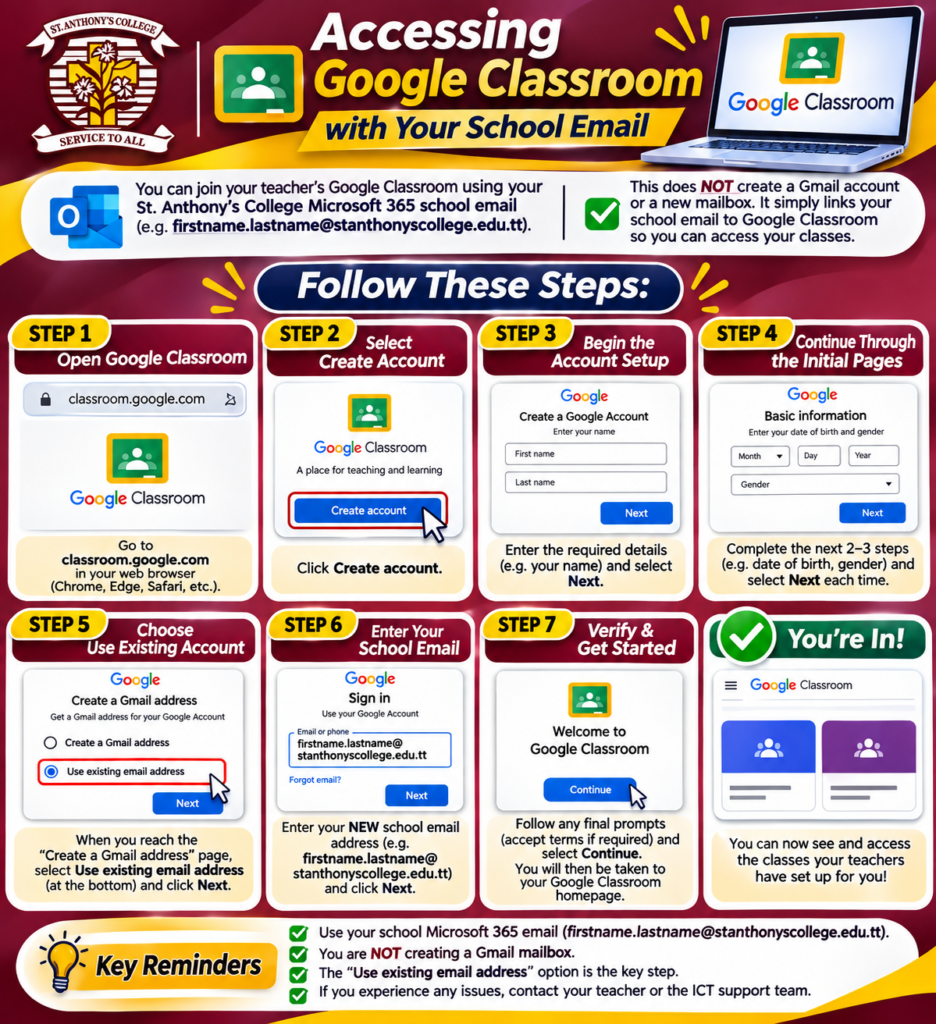
Good news, students! You can use your new St. Anthony’s College Microsoft 365 email address to sign up for Google Classroom.
Important: You are creating a Google Account using your existing school email, NOT a Gmail address or another email mailbox. Your email will continue to work through Microsoft Outlook.
Step 1 — Open Google Classroom
Open Chrome, Safari, Edge or another browser and visit:
If you already see a Google sign-in screen, select Create account. If you’re signed into another Google account, sign out or use a private browsing window first.
Step 2 — Create Your Google Account
Select Create account, then For my personal use if Google asks what type of account you want to create.
This is simply part of Google’s standard account-registration process.
Step 3 — Enter Your Name
Enter your first name and last name, then select Next.
Step 4 — Complete the Basic Information
Google may request your date of birth and other basic information.
Complete the required fields and select Next.
Step 5 — Choose Your Existing School Email
THIS IS THE MOST IMPORTANT STEP!
When Google asks you to choose or create a Gmail address, look for:
“Use your existing email” or “Use your existing email address.”
This option may appear below the suggested Gmail addresses or on the email-selection screen.
Do not create an @gmail.com address.
Step 6 — Enter Your SAC Email Address
Enter your NEW school email:
firstname.lastname@stanthonyscollege.edu.tt
Select Next or Continue.
Remember: your new school email includes stanthonyscollege, not just stanthonys.
Step 7 — Verify Your School Email
Google may send a verification code to your SAC Outlook mailbox.
- Open https://outlook.com in another browser tab.
- Sign in with your school email and Microsoft 365 password.
- Find the verification email from Google.
- Copy the verification code.
- Return to Google and enter the code.
Follow the remaining prompts to complete your Google Account setup. Google may ask you to create a separate Google Account password.
Your Google Account password does not automatically become your Microsoft 365 password.
Step 8 — Open Google Classroom
Return to:
Sign in with your SAC school email and the Google Account password you created.
Follow any introductory prompts.
Step 9 — Join Your Teacher’s Classroom
If your teacher has provided a class code:
- Click the + symbol.
- Select Join class.
- Enter the class code.
- Click Join.
If your teacher sent an invitation, open the invitation and follow the instructions.
You’re connected!
Remember!
- You are not creating a Gmail mailbox.
- Your school email remains accessible through Microsoft Outlook.
- Your Google Account uses your existing SAC email address as its username.
- Google Classroom and Microsoft Teams are separate platforms.
- You may need your teacher’s class code or invitation to join a classroom.
- If Google does not allow account creation because of age or school restrictions, contact your teacher or the school’s ICT support team.
Need assistance?
Email: SMSadmin@stanthonyscollege.edu.tt
St. Anthony’s College — Service to All
One School. One Email. More Ways to Learn!
One Response